



Stories


A practical way to use your phone less: keep your Apple Watch for the essentials, prepare one short outing, and understand what changes when you carry the watch off your wrist.
Every few months, the same question returns in tech forums and minimalist circles: can you replace your iPhone with an Apple Watch? The answer depends on whether you mean permanent independence or a few useful hours without your phone.
A watch can keep calls, messages, payments, music, and directions close at hand. It is still a poor stand-in for long typing, photography, banking flows, and complex work. For a feature-by-feature answer, see our complete Apple Watch replacement guide. This article focuses on the practical routine: what to prepare, when to leave the phone at home, and what changes when you carry the watch off your wrist.
Full replacement vs situational freedom
Most attempts to ditch a smartphone run into ordinary requirements: authentication prompts, work apps, banking, travel documents, and the occasional long message. A permanent switch to a simpler phone can introduce more friction than relief.
A more useful distinction is between two goals:
- Full replacement: the watch handles every task for the foreseeable future. That is rarely realistic; initial setup still uses an iPhone, and many camera, typing, and app tasks remain better on a phone.
- Situational freedom: the watch covers a familiar outing or focused block. A walk, workout, coffee run, or dinner can often fit this model if you prepare the functions you need.
The point is to carry your phone less often when doing so is practical. If you are planning your first outing, our leave-your-iPhone-at-home checklist goes deeper.
What the watch handles on its own
A prepared Apple Watch can handle the essentials of a short day away from your iPhone. The details vary by model, carrier, country, and whether Wi-Fi or cellular is available; Apple’s current guide to using a watch without an iPhone nearby is the best place to check your setup.
- Calls and short replies: with a supported cellular or Wi-Fi connection, you can make calls and send messages. Wi-Fi calling must be configured for ordinary phone calls over Wi-Fi; some SMS and third-party notifications still rely on a powered-on paired iPhone.
- Payments: Apple Pay can work when the watch is offline, provided it is set up and unlocked.
- Music and podcasts: download supported audio before you leave, or stream when you have a suitable connection. Offline playback can help avoid cellular use.
- Directions: use a network connection for live maps, or sync a supported offline map to the watch in advance. Apple explains the offline-map setup and regional limits.
- Safety: Emergency SOS and Fall Detection may help on supported models, but emergency calling depends on a usable cellular or Wi-Fi calling connection, or a supported satellite feature where available.
Those functions cover many outings. They do not make the watch a full phone, and it is wise to test your own setup before relying on a feature away from home.
Where the watch falls short
The watch’s small screen makes some tasks awkward. Long emails, document editing, photography, and multi-step work apps still belong on a phone or computer. Browsing and social feeds may be possible in limited forms, but they are less comfortable on the watch.
Cellular use also changes battery life. Long calls, maps, and streaming can drain the watch faster than passive use, so a short outing is a better first experiment than an all-day commitment.
For some people, that friction is useful: it lets essential tasks through without making every spare minute another scrolling session. The benefit is a quieter routine, not a promise that the watch can do everything.
Moving off the wrist
A wrist-worn watch is easy to glance at, which can also make every vibration an invitation to check it. Carrying it in a pocket case changes that habit: you reach for it when you have a task, then put it away.
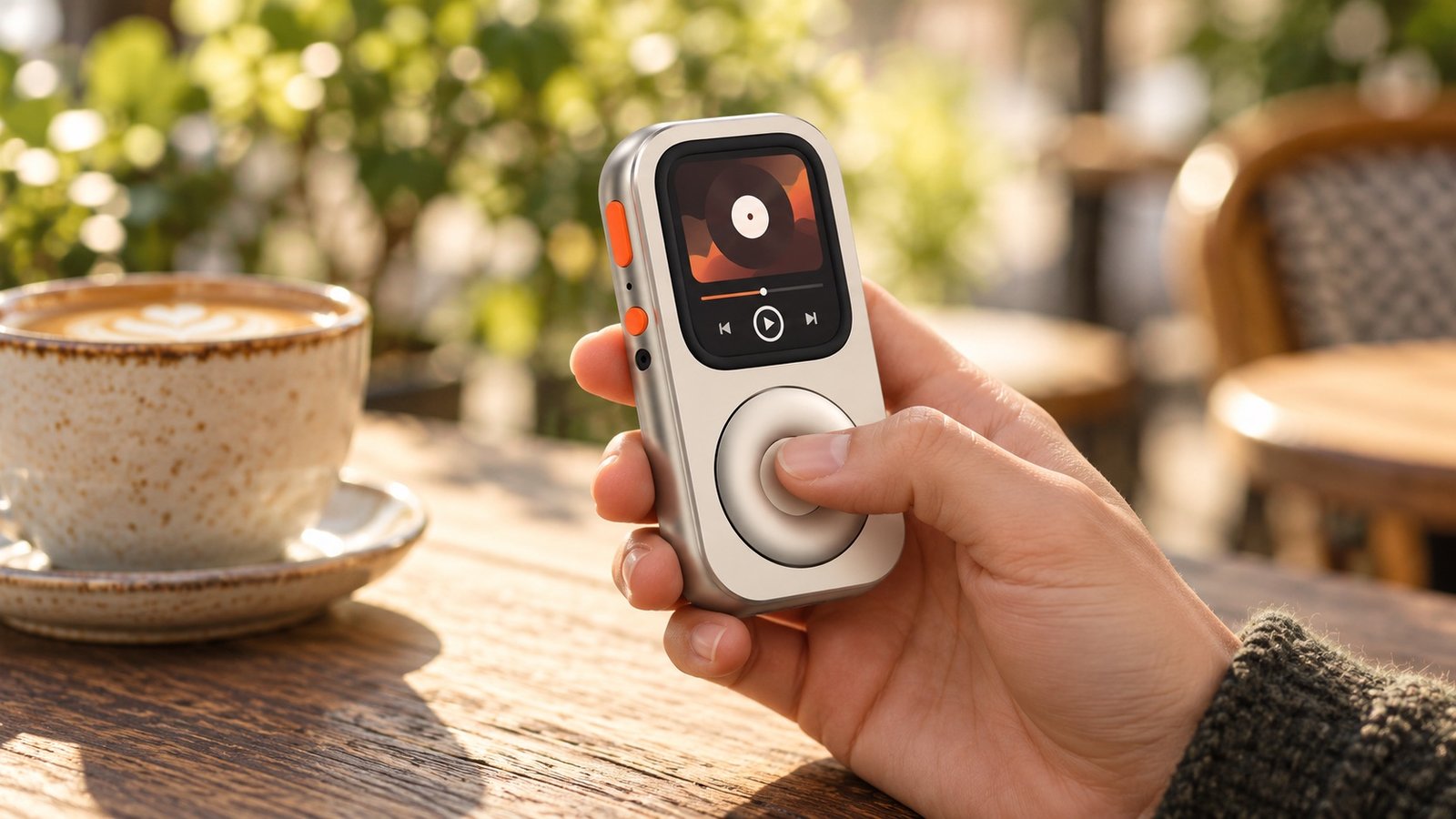
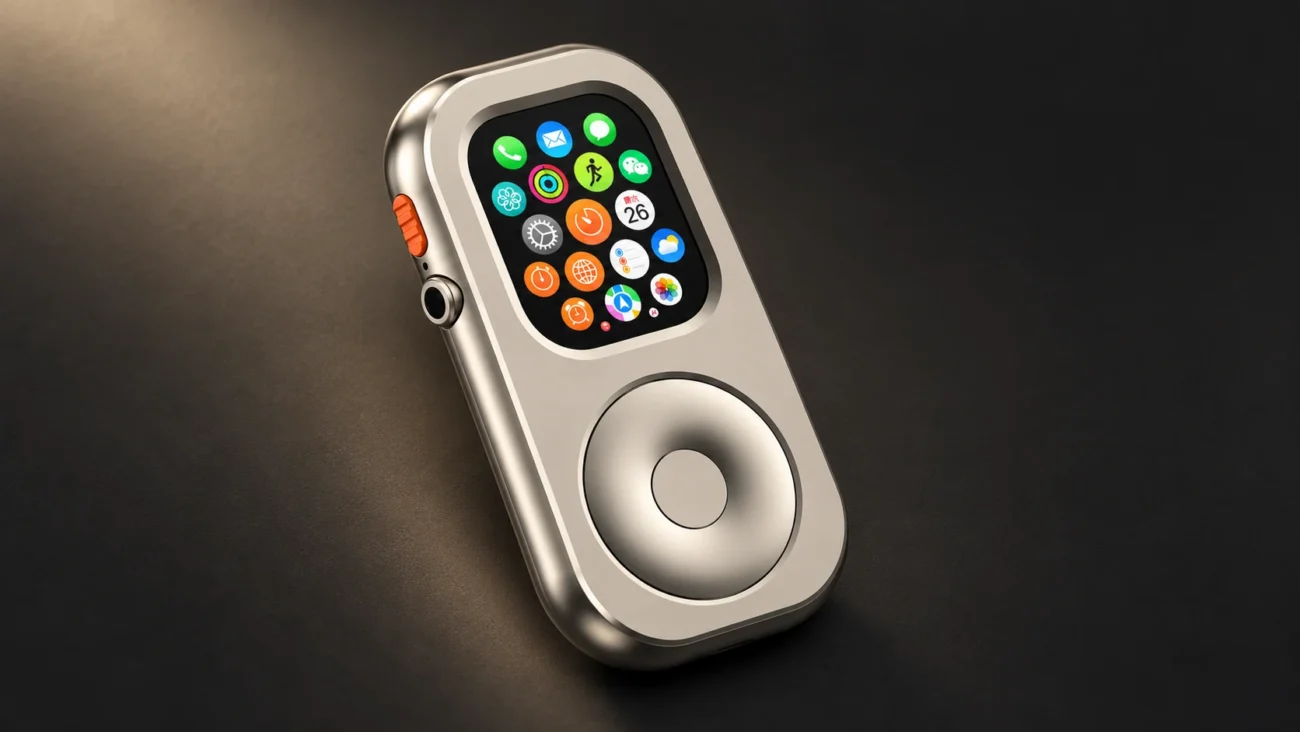
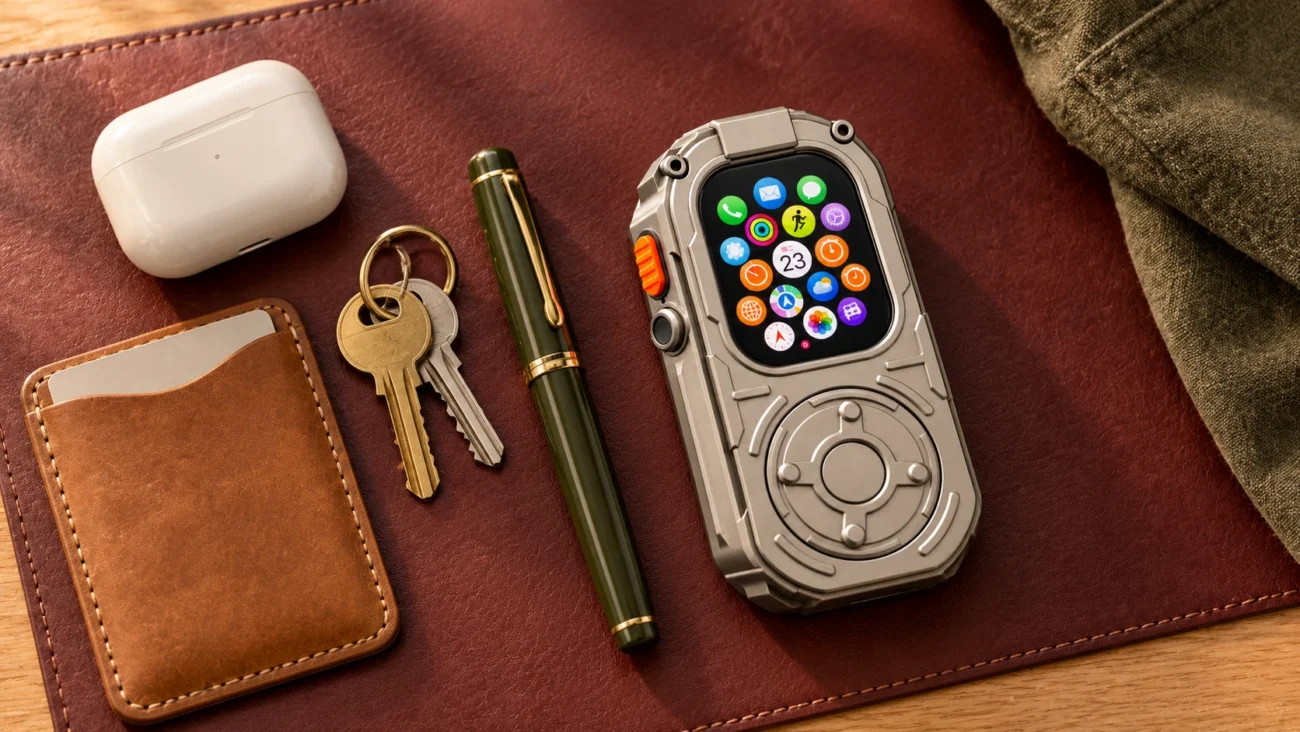
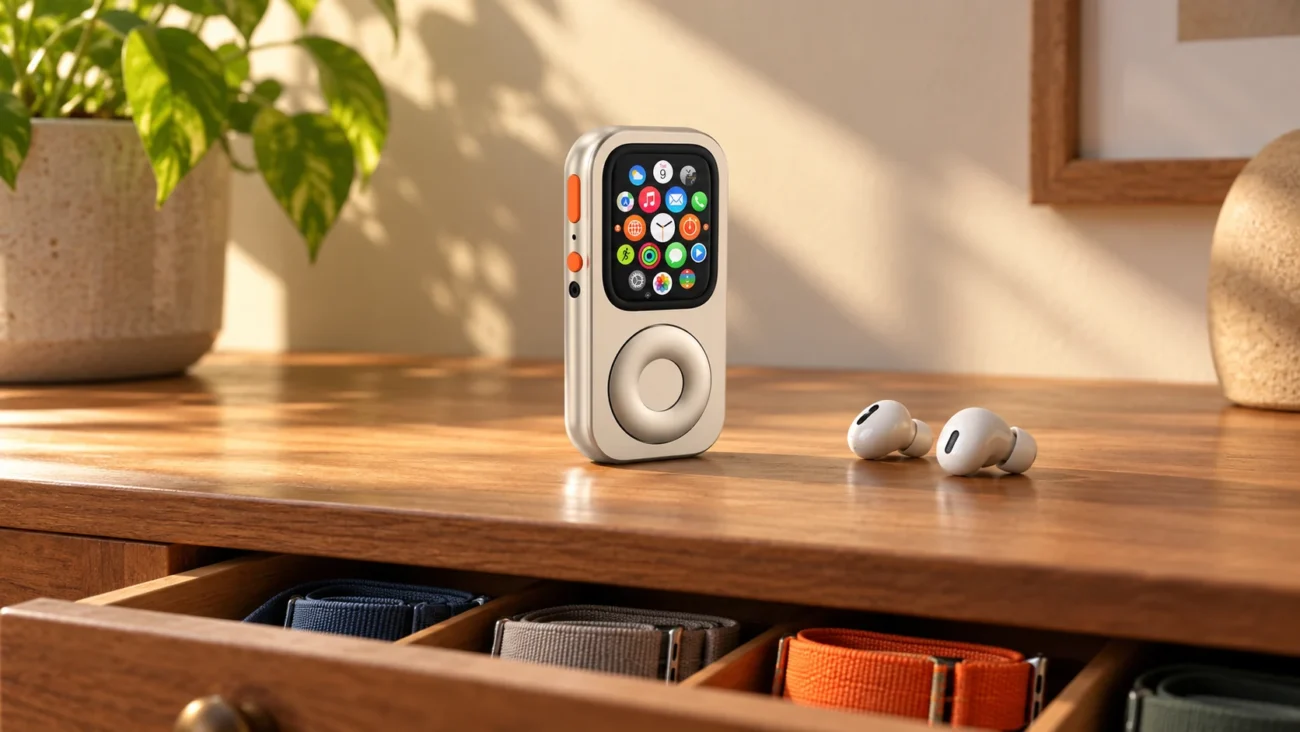
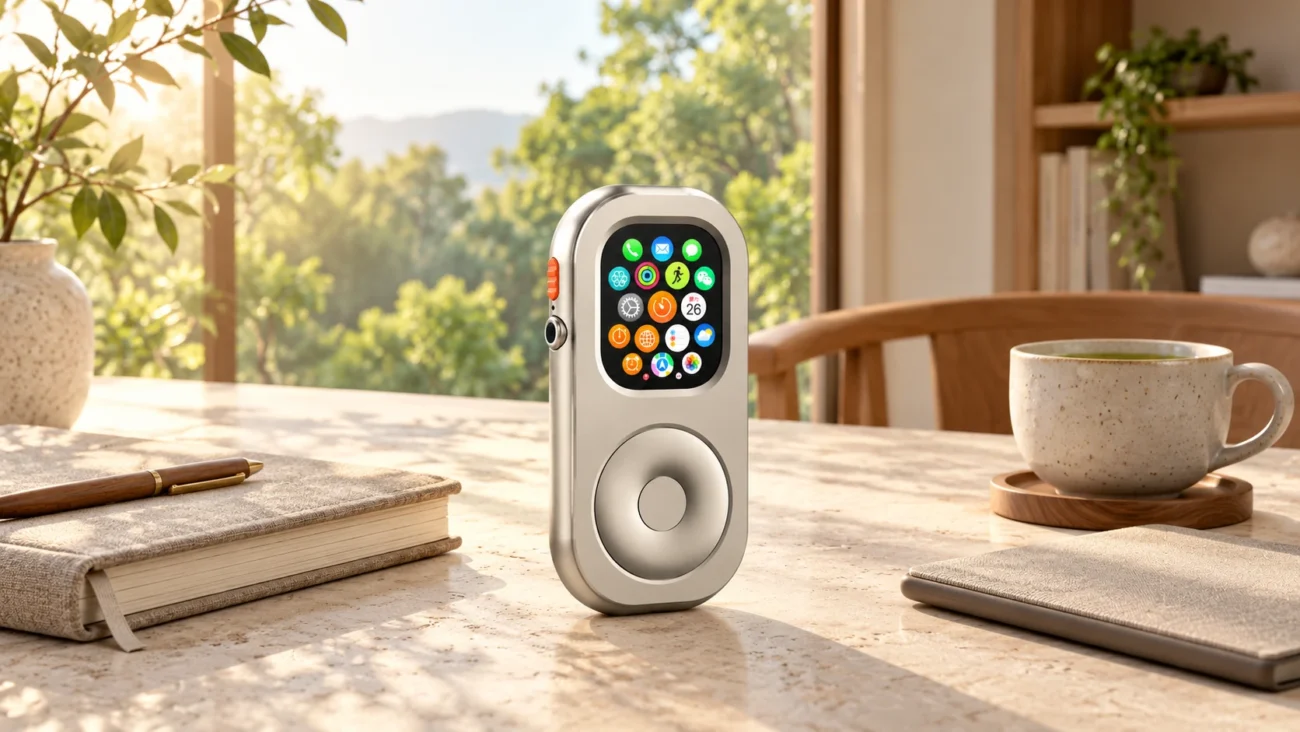
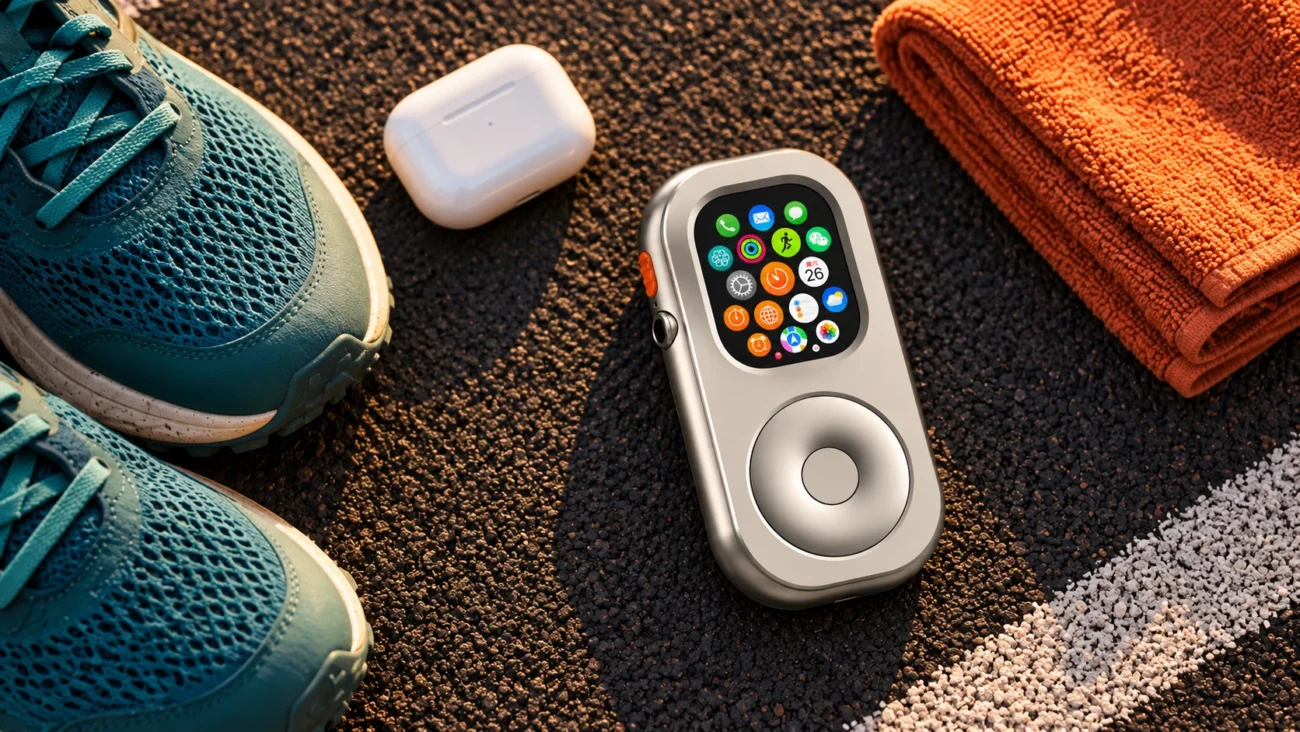
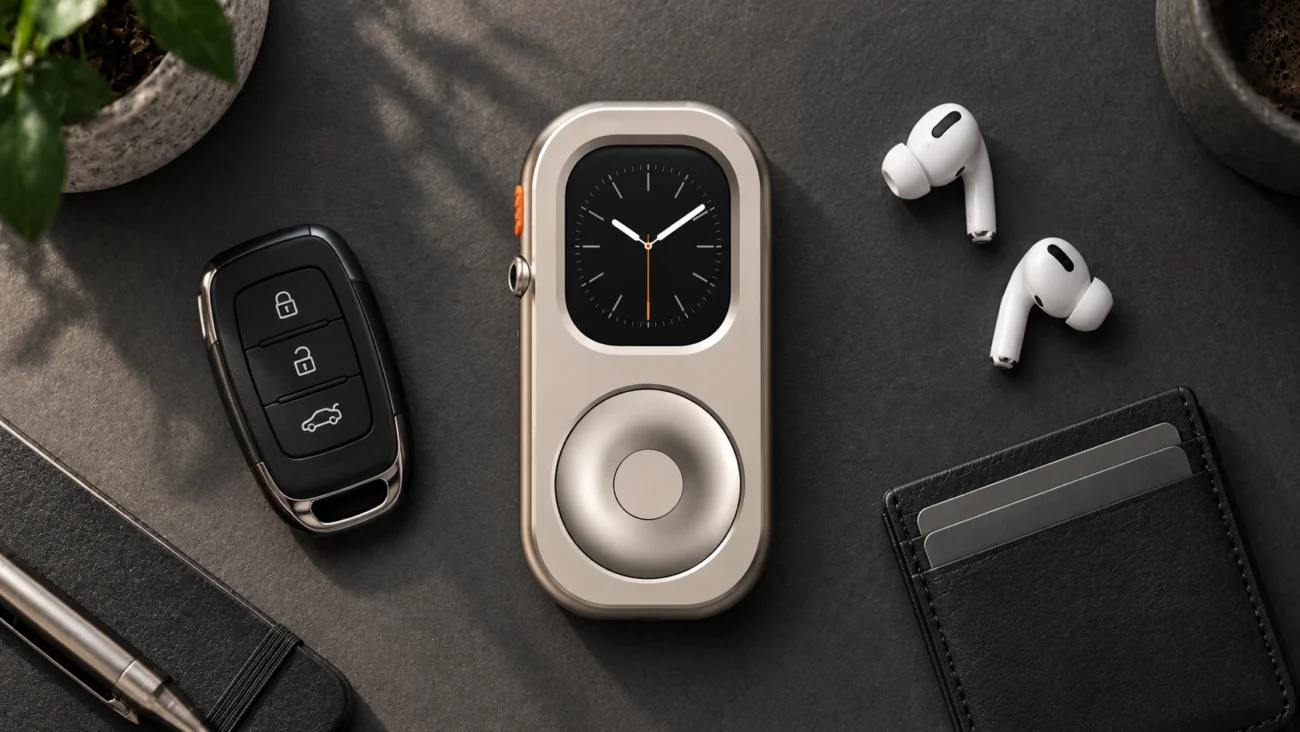
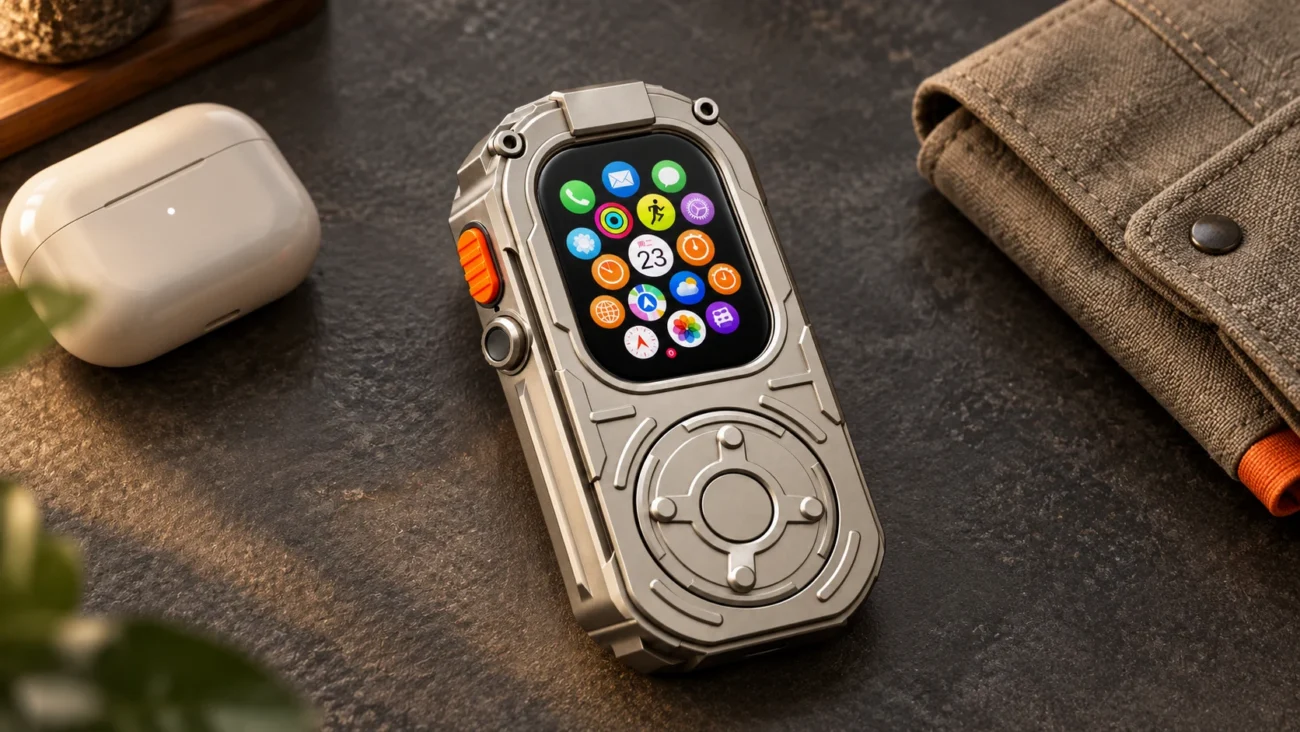
A metal handheld case such as RePod’s Apple Watch handheld case gives the watch a tactile form and a physical wheel. It changes the way you hold and operate the device; it does not add cellular service or change watchOS.
Off-wrist use has trade-offs. With Wrist Detection on, the watch may lock after you remove it and ask for a passcode before payment. Turning Wrist Detection off affects heart-rate tracking, some activity measurements, and automatic emergency calling after a detected hard fall. Keep the watch on your wrist when you want those functions, especially for workouts. Apple details these Wrist Detection effects.
How to start a phone-free routine
Start with one low-stakes outing and a quick setup check:
- Trim alerts. Keep the calls and reminders you care about; silence nonessential news and social notifications.
- Prepare media and maps. Download supported music or podcasts, and sync an offline map if the route needs one.
- Test the connection. Confirm calls, messages, and payment behavior with your actual watch, carrier, and iPhone status.
- Choose a carry mode. Wear the watch for fitness and wrist-based safety features. Try pocket carry for a calm errand if its lock and payment behavior works for you.

A short walk, coffee stop, or gym trip is enough to learn what you miss and what you do not. Adjust the routine from there.
Frequently asked questions
Do I need an iPhone to set up an Apple Watch?
Initial pairing uses an iPhone, including when a family member without their own iPhone uses a supported family setup. Later software updates can also be installed directly on a compatible watch over Wi-Fi. See Apple’s update instructions for the current requirements.
Does Apple Pay work if my iPhone is turned off at home?
Yes, a set-up Apple Watch can make Apple Pay purchases without a phone or active internet connection. If you carry the watch off your wrist and it locks, enter its passcode before paying.
Can I take phone calls privately without using the watch speaker?
Yes, compatible Bluetooth earbuds can make a call more private. The call still needs a supported cellular or Wi-Fi calling connection and the right carrier setup.
A tool, not a master
An Apple Watch will not replace your iPhone for every part of life. It can, however, cover the ordinary moments when carrying a full phone feels unnecessary: a workout, an errand, a coffee run, or a focused afternoon.
If you want a more tactile way to carry it, explore RePod C and check watch size compatibility before choosing a case. The watch and its connection still determine which features work away from your phone.